
How to Get Your Shopify Products on Google
Google lets you list your Shopify products for free. Here is how to connect the Google & YouTube channel, opt in to free listings, and keep your product feed clean so customers find you in search.
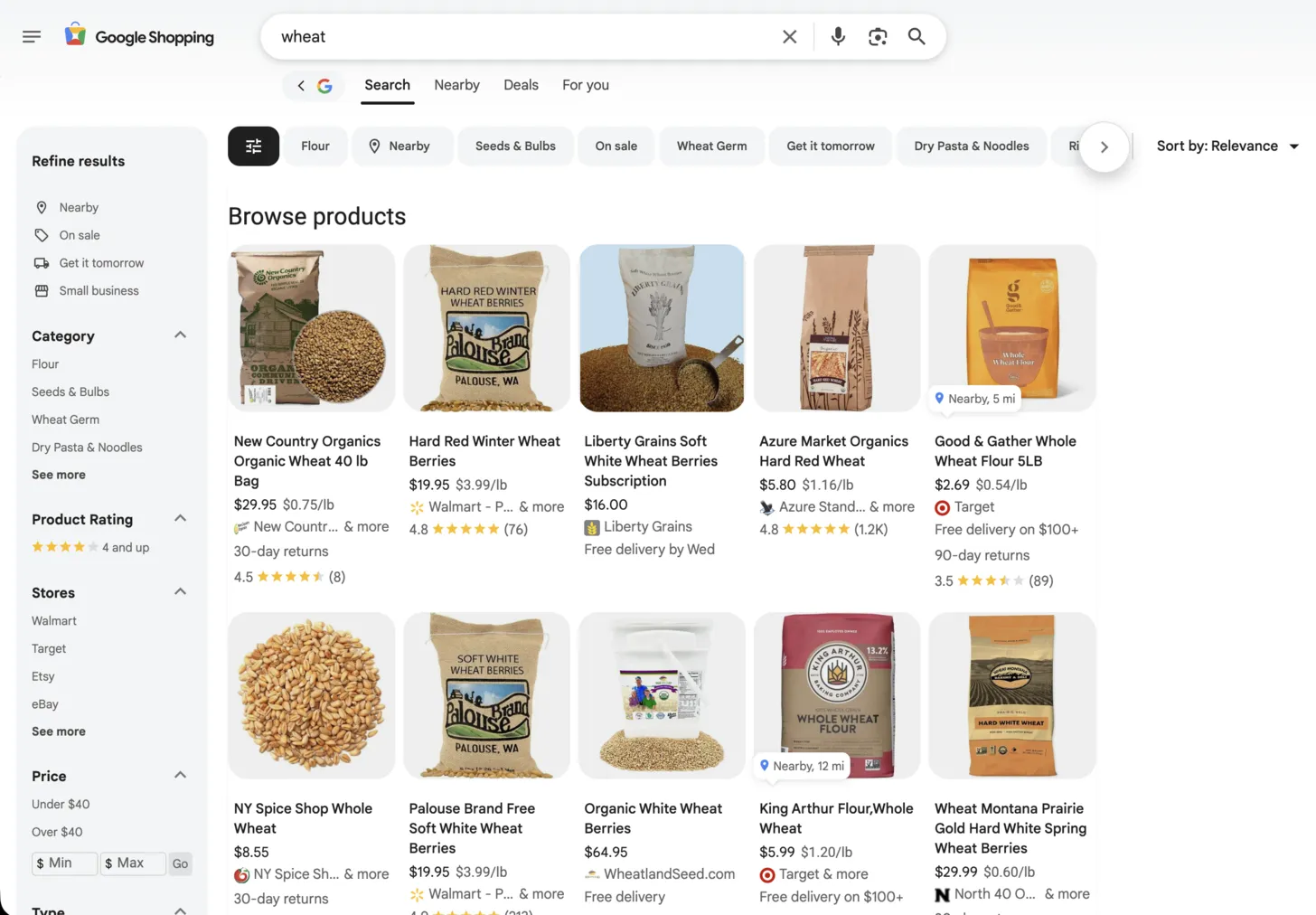
People shop on Google before they shop on your store. They search, compare, and decide which products to click. If your products are not there, that decision happens without you.
Google lets you list your products for free. Most Shopify owners never turn it on, or turn it on and stop. This is how to do it right.
Why this matters
Google Search is where buying decisions start. When someone looks for what you sell, your product can appear in the results with a photo, price, and link. No ad spend required.
Free listings get less placement than paid ads. They still drive real traffic over time, and they cost nothing. The work is in the setup and the upkeep, not the budget.
How it works
Google reads a feed of your products. The feed lives in a tool called Google Merchant Center. Shopify keeps that feed in sync for you through one app.
Here is the path.
1. Install the Google & YouTube channel
Open your Shopify admin and add the Google & YouTube sales channel from the app store. This is the official connection between Shopify and Google.
2. Connect your Google account
Follow the setup flow. Link an existing Merchant Center account or let Shopify create one. Pick the account where you are the administrator.
3. Verify your domain
Google needs to confirm you own your store. The channel walks you through it. Skip this and nothing publishes.
4. Sync your catalog
Products that are active in your store sync to Merchant Center automatically. Updates flow through every day or two, so price and stock changes carry over without manual work.
5. Opt in to free listings
In the channel settings, confirm your feed is opted in to free product listings. This is what makes your products eligible to show across Google at no cost.
Setup takes about 20 to 30 minutes.
Where your products show
Once products are approved, they can appear across Google for free. That includes the Shopping tab, regular Search results, Google Images, Maps, and Lens.
Each surface is a place where a customer is already looking. Approved products show up. Disapproved products do not.
What earns placement
Connecting the channel gets your products into Google. The quality of your product data decides whether they actually show.
Fill in the required fields for every product. Price and availability must match what is on your site. Add shipping information. Add a clear title and description.
Use GTINs where you have them. A GTIN is the barcode number that identifies a product. Google uses it to match your listing against its product database. Listings with GTINs get matched more reliably and surface more often, including in Google's SI shopping recommendations. Listings without them force Google to guess.
Keep the feed clean
Google checks your products and flags problems in a section called Diagnostics. Check it weekly.
The most common Shopify error is a price mismatch. It usually comes from sale prices or currency conversion, where the price Google reads does not match the price on your page. Other frequent issues are missing shipping data, GTIN errors, and image quality flags.
Fix errors fast. A few disapproved products can drag down the health of your whole account. Google also expires product data on a set schedule, so the channel re-syncs on its own to keep your listings live.
Common Questions
Does it cost anything to list Shopify products on Google?
No. Free product listings appear across Google at no cost once your feed is connected and opted in. Paid Shopping ads are a separate, optional layer on top of free listings.
How long until my Shopify products show up on Google?
After setup, products sync to Merchant Center within a day or two and then go through review. Approved products usually start appearing within a few days, though a brand new account can take longer.
Why are my Shopify products disapproved in Merchant Center?
The most common cause is a price or availability mismatch between your feed and your live product page. Missing shipping data, GTIN errors, and low-quality images are other frequent reasons. Check the Diagnostics tab and fix flagged items quickly.
Do I need a GTIN for every product?
Not always, but they help. GTINs let Google match your products to its database, which improves how often they surface. For custom or handmade products without a barcode, you can mark them as not having a GTIN.
The takeaway
Getting on Google is not a one-time task. The setup is quick. The advantage comes from the upkeep.
Install the channel. Verify your domain. Opt in to free listings. Then treat your product feed like inventory. Keep it accurate, complete, and free of errors.
Customers are searching for what you sell right now. Clean data is what decides whether they find you or someone else.
Related guides
Talloo Services
See how Talloo helps local businesses get found.
Get Started
Ready to grow your local visibility?
Get a free assessment of your current digital presence and a custom plan to improve it.