
How to Set Up Your Business on Apple Maps
A step-by-step guide to claiming or creating your Apple Business Connect listing, completing verification, and adding Talloo as a manager so your Apple Maps profile stays accurate.
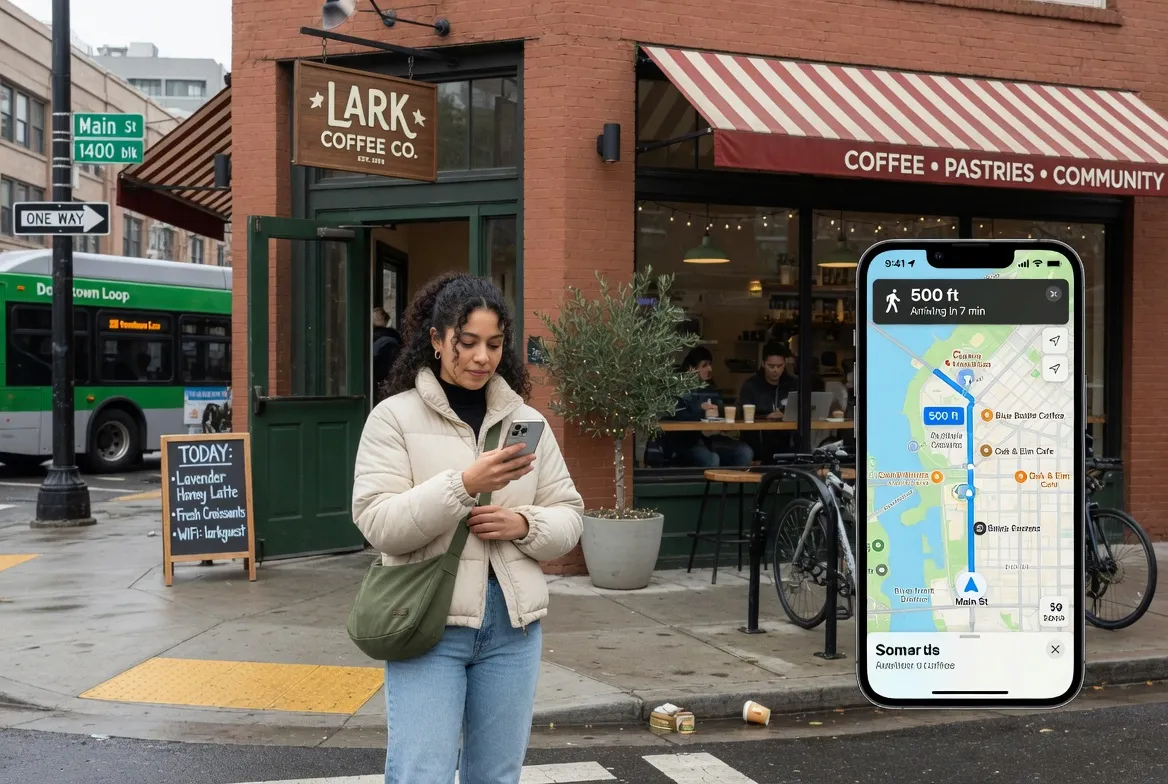
Apple Maps is one of the most-used navigation apps on iPhones and iPads. When customers search for a business like yours, Apple Maps pulls from Apple Business Connect to show your name, address, hours, photos, and contact information.
This guide walks you through creating your listing and adding Talloo as a manager so we can keep your profile accurate and up to date.
What You Need Before You Start
- An Apple ID (the same one you use for your iPhone, iPad, or Mac)
- Your business name, address, phone number, and website
- Access to your business email address (for verification)
If you do not have an Apple ID, you can create one for free at appleid.apple.com.
Step 1: Go to Apple Business Connect
Open a web browser and go to businessconnect.apple.com.
Click Sign In and use your Apple ID credentials.
Step 2: Search for Your Business
Once you are signed in, Apple will prompt you to find your business.
- Type your business name in the search field
- If your business appears in the results, select it
- If it does not appear, select Add a new place and enter your business details manually
Step 3: Claim or Create Your Listing
If your business already exists
- Select your business from the search results
- Click Claim this place
- Confirm that the address and business details are correct
If you are creating a new listing
- Enter your business name, category, address, phone number, and website
- Review the information and click Continue
Step 4: Verify Your Business
Apple will ask you to verify that you own or manage the business. Verification options typically include:
- Phone call to your listed business number
- Email to an address associated with your business domain
Follow the prompts to complete verification. This step can take a few minutes.
Step 5: Complete Your Profile
Once verified, fill in your business profile:
- Business hours (including holiday hours if applicable)
- Photos of your location, storefront, or team
- Business description
- Website URL
A complete profile improves how your listing appears in Apple Maps search results.
Step 6: Add Talloo as a Manager
This step gives Talloo permission to manage your listing on your behalf.
- From your Business Connect dashboard, click your business name to open the listing
- In the left-side menu, click People
- Click Add Person
- Enter the email address provided by your Talloo account manager
- Under Role, select Manager
- Click Send Invitation
Talloo will receive an email invitation and accept access from there. You remain the owner of your listing at all times.
That Is It
Once Talloo accepts the invitation, we can begin managing your Apple Maps profile as part of your Visibility service. If you run into any issues during setup, reply to your onboarding email and we will help you through it.
Questions Business Owners Often Ask
Is Apple Business Connect free?
Yes. Apple Business Connect is completely free for business owners to claim, verify, and manage their listings on Apple Maps.
Do I need to set up Apple Maps if I already have Google Business Profile?
Yes. Apple Maps is the default map app on every iPhone and iPad, and it pulls from a different database than Google. Setting up both ensures customers can find you regardless of which device they use.
How long does verification take?
Most verifications complete within minutes when using the phone or email method. In some cases Apple may require additional review, which can take a few business days.
Will adding Talloo as a manager give up ownership of my listing?
No. You always remain the owner. Manager access lets Talloo update hours, photos, and information on your behalf, but only the owner can transfer or remove the listing.
What if my business does not appear in the search results?
Choose Add a new place and enter your details manually. Apple will guide you through creating the listing and verifying ownership.
*Produced by Talloo — Visibility, Engage, Capture*
Related guides
Talloo Services
See how Talloo helps local businesses get found.
Get Started
Ready to grow your local visibility?
Get a free assessment of your current digital presence and a custom plan to improve it.